

Proxmox VE is a powerful open-source virtualization platform that provides professional-grade virtualization solutions for both enterprises and individual users. This guide will guide beginners through system installation and step-by-step through the basic configuration and usage of Proxmox VE, allowing you to quickly master this powerful virtualization tool.
System requirements and preparation
Hardware requirements
- 64-bit x86 processor (VT-x or AMD-V support)
- At least 2GB of RAM (8GB or higher recommended)
- At least 32GB of hard drive space (SSD recommended)
- Network interface card
For production environments, it is recommended to use multi-core processors, sufficient memory, and high-speed storage devices to ensure stable operation of the virtualized environment.
Virtualization support check
Before installation, make sure your processor supports hardware virtualization. Intel processors must support VT-x technology, and AMD processors must support AMD-V technology. These features typically need to be enabled in the BIOS or UEFI.
Check command:egrep -c '(vmx|svm)' /proc/cpuinfo, result greater than 0 indicates support for virtualization.
Network Planning
Before installation, you need to plan your network configuration, including the IP address, subnet mask, gateway, and DNS server. If you plan to set up a cluster, you also need to plan the cluster network and storage network. It's recommended to assign a static IP address to the management interface to ensure stable remote access.
Installing Proxmox VE
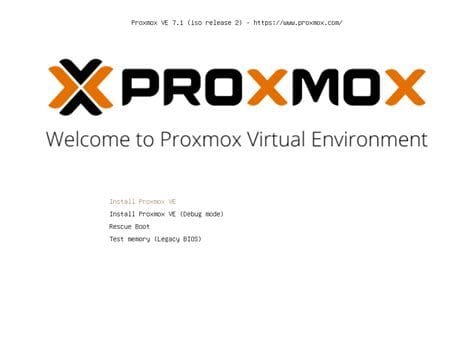
Downloading and preparing installation media
Download the latest version ISO image from the Proxmox official website and burn it to a USB drive or DVD. You can also mount it directly in a virtual machine.
Installation steps
- Boot the server using the installation media (you may need to adjust the BIOS boot order).
- Accept the license agreement.
- Select the target hard drive and configure the file system (RAID or ZFS is supported).
- Set the time zone, country, and keyboard layout.
- Set a strong password for the root user (for the web interface and SSH access).
- Configure the management network (IP address, subnet mask, gateway, and DNS).
- Confirm the settings and begin the installation (approximately 10-20 minutes).
After the installation is complete, the system will automatically reboot. Please record the management IP address you set, as you will access the web management interface through this address later.
Initial configuration and system updates
Logging in to the web management interface for the first time
After installation is complete, use your browser to access the Proxmox VE management interface at https://[IP address]:8006. You may receive a security warning the first time you access the system. This is because the system uses a self-signed SSL certificate, which ensures continued access.
Log in using the root username and password you set during installation. After logging in, the resource tree appears on the left, and detailed information and the control panel appear on the right.
System Update
After logging in, you should first update your system: select the node, click the "Updates" tab, click "Refresh" to update the package list, and then click "Upgrade" to install all available updates. Afterward, it's recommended to restart the system to ensure all updates take effect.
If you don't subscribe to the Enterprise Edition, you may see a repository warning. You can refer to the official documentation to set up a repository for the Free Edition.
Storage Configuration
Storage Types
Proxmox VE支援多種存儲類型:
- Local storage: Directly access the server's disk space
- Network storage: NFS, CIFS, iSCSI, etc.
- Distributed storage: Ceph, GlusterFS, etc.
For new users, it is recommended to first use local storage to familiarize yourself with the system.
Adding New Storage
- In the web interface, navigate to "Datacenter" > "Storage"
- Click the "Add" button
- Select the storage type (e.g., Directory, NFS, LVM, etc.)
- Fill in the necessary information (ID, path, options, etc.)
- Click "Add" to complete the creation.
A complete storage configuration should include storage areas for different purposes, such as ISO images, container templates, VM disks, etc.
Creating your first virtual machine
Prepare ISO Image
Select "local" storage, click the "ISO Images" tab, use the "Upload" button to upload the operating system ISO file, or use the "Download from URL" function to download it directly from the Internet.
Start the creation wizard
Click the "Create VM" button in the upper-right corner to launch the virtual machine creation wizard. Set the VM ID, name, operating system type, system settings, hard drive configuration, CPU configuration, memory size, and network settings.
Complete the installation
Once created, select the virtual machine and click the "Start" button to start it. Click the "Console" tab to access the virtual machine's console and follow the normal steps to install the operating system.
After the virtual machine is started, its resource usage can be monitored through the web interface, and CPU, memory and other configurations can be adjusted at any time. For Windows virtual machines, it is recommended to install the QEMU Guest Agent to improve integration.
LXC container: lightweight virtualization solution
What are LXC containers?
LXC (Linux Containers) is a lightweight virtualization technology that consumes fewer resources than full virtual machines and starts faster, making it very suitable for running Linux application services.
Download container template
- In the Storage view, select the "local" storage.
- Click the "CT Templates" tab.
- Click the "Templates" button to browse the available container templates.
- Select the desired Linux distribution and download it.
Create a container
- Click the "Create CT" button to launch the container creation wizard.
- Set the container ID, hostname, and password.
- Select the downloaded container template.
- Configure the root file system, CPU, memory, and network.
- Confirm the settings and create the container.
After being created, LXC containers can be started, stopped, and managed like virtual machines, but they consume fewer resources and are suitable for deploying lightweight services such as web servers and databases.
Resource monitoring and backup management
Resource Monitoring
Proxmox VE offers extensive monitoring features, allowing you to view information such as CPU usage, memory usage, network traffic, and storage I/O for both nodes and VMs. This information is displayed in graphs to help administrators understand system health.
Overall resource usage can be viewed in the node view, while resource consumption for individual instances can be viewed in the VM or container details page.
Backup Management
Regular backups are an important management task. In "Datacenter" > "Backup," you can create backup tasks, set backup schedules, and configure retention policies. Proxmox VE supports full and incremental backups of virtual machines and containers.
It's recommended to schedule automatic backups and regularly test backup and restore functionality to ensure data security. Backups can be stored locally or on a network.
Network configuration and security management
Virtual network configuration
Proxmox VE supports multiple network configuration modes:
- Bridge mode: VMs are directly connected to the physical network.
- NAT mode: VMs use the host for network forwarding.
- Isolated network: Communication between VMs is restricted to between VMs.
Configure network interfaces and virtual switches in "System" > "Network." For more complex needs, you can also configure VLANs and SDN.
Firewall Settings
Proxmox VE has a built-in firewall feature that can be configured at multiple levels:
- Datacenter level: Rules that apply to all nodes
- Node level: Rules that apply to specific nodes
- VM/Container level: Rules that apply only to specific instances
It is recommended to adopt the principle of least privilege, opening only necessary ports and services to improve security.
Good network planning and security configuration are the foundation of a virtualized environment. For production environments, it is recommended to use VLANs to isolate different types of traffic and implement strict firewall policies.
Troubleshooting and Advanced Learning
Log Viewing
When encountering problems, viewing system logs is an important troubleshooting step:
- Web UI: View system logs through "System" > "Syslog"
- SSH connection: View detailed log files directly in the /var/log/ directory
- Virtual Machine Issues: View the task logs and QEMU logs for a specific virtual machine
Performance Optimization
As you gain experience, you can optimize the following:
- Rationally allocate CPU and memory resources
- Select the appropriate virtual hard drive format and storage type
- Optimize network configuration to reduce latency
- Adjust the virtual machine's CPU model and features
Advanced Feature Exploration
After mastering the basics, you can explore more advanced features:
- Cluster configuration and high availability (HA)
- Software-defined networking (SDN)
- Ceph distributed storage
- API and automation scripts
While Proxmox VE offers powerful features, even novice users can master its use through systematic learning and practice. It's recommended to familiarize yourself with basic operations in a test environment before considering deployment in a production environment. Proxmox VE provides enterprises with a flexible, scalable, and cost-effective virtualization solution, making it an ideal tool for digital transformation.

There are no comments.